The server or the workstation can however be part of a domain and the time is synced with it.
In this situation after the date/time is changed for the tests, the sync process will update them to the Domain Controllers value.
This will reset the date/time and the test environment is lost.
A question will then arise:
How to prevent time syncing with Domain Controllers?
The best solution that works in my test environment, is to change the registry key Type (REG_SZ value) located at
HKEY_LOCAL_MACHINE\SYSTEM\CurrentControlSet\Services\W32Time\Parameters
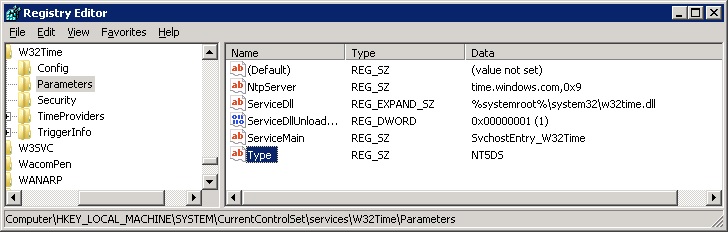
The Type can have the following values:
| Value | Description |
| NoSync | No Sync with Domain Controllers |
| Nt5DS | Sync with Domain Controllers |
Note that the Nt5DS value is my configuration. Keep your Type value in the registry to restore to it.
The value can be updated with the registry editor (regedit) or by the command line, executing the following command:
reg add HKEY_LOCAL_MACHINE\SYSTEM\CurrentControlSet\Services\W32Time\Parameters /v Type /d NoSync /f
Note that the value NoSync forces the time not being synced with the Domain Controllers. Change the value to you configuration to restore the time sync.
This solution is great, but be aware that if the server/workstation date/time gets out of sync with the Domain Controllers, authentication will fail and you can loose access to them.
While testing, keep the server/workstation logged-in so that you can keep the date/time in sync with the Domain Controllers.
To automated the process of setting the test ambient you can create a cmd file with:
reg add HKEY_LOCAL_MACHINE\SYSTEM\CurrentControlSet\Services\W32Time\Parameters /v Type /d NoSync /f
net start W32Time
sc config "W32Time" start= disabled
net stop W32Time
date 01-04-2090
In this example the date is set as 01-04-2090
To return to the previous environment:
reg add HKEY_LOCAL_MACHINE\SYSTEM\CurrentControlSet\Services\W32Time\Parameters /v Type /d Nt5DS /f
sc config "W32Time" start= auto
net start W32Time
You may also need to set the date, if you computer is not syncing the date with and time server.

